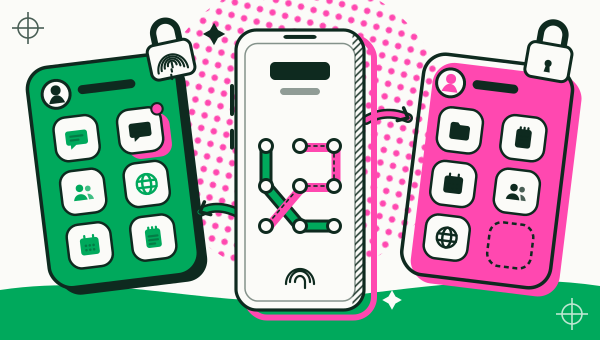
Second Space is a separate profile on a Xiaomi, Redmi or POCO phone, with its own apps, accounts and unlock password, while Dual apps puts a second copy of one app next to the original on the same home screen. For two accounts of the same app open together, use Dual apps. To keep a whole set of apps apart, or to hand the phone to someone else, use Second Space. Not every Xiaomi model has Second Space, so the sections below cover how the two differ, which phones have it, how to turn it on, switch and delete it, and what it cannot do.
What is Second Space on a Xiaomi phone?
Second Space is a feature that creates a completely separate and isolated environment inside one phone, with its own apps, accounts and settings. That is how Xiaomi’s support FAQ describes it, as a way to keep personal and work data apart. Xiaomi’s page for the Redmi Note 13 Pro 5G adds that it can also work as a guest mode, so someone else can use the phone without reaching your data (Xiaomi support).
Think of it as a second phone profile that lives on the same hardware. You unlock into one space or the other, and each has its own home screen, apps and photos.
How is Second Space different from Dual apps?
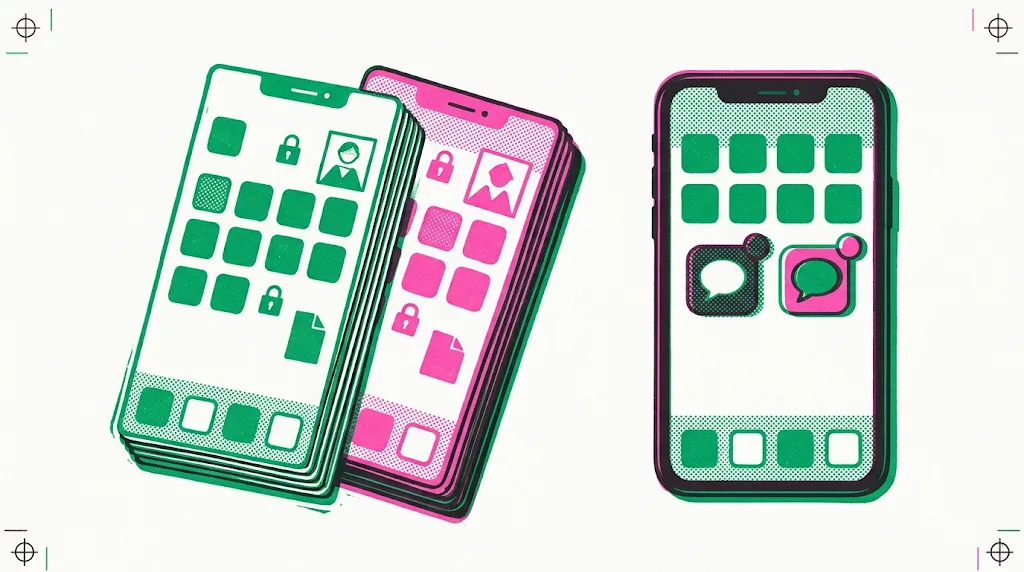
Second Space splits the whole phone into two spaces, and Dual apps clones one app inside a single space. The two features sit in different menus and solve different problems:
| Second Space | Dual apps | |
|---|---|---|
| What it creates | A separate profile: apps, accounts, files, settings | A copy of one app |
| Where the second account lives | In the other space, so you switch spaces to reach it | On the same home screen, next to the original |
| Both accounts open at once | No, you switch spaces first | Yes, both copies can run together |
| Password | Yes, an unlock password for each space | None described on Xiaomi’s page |
| Where it is in Settings | Settings, Additional settings, Second space | Settings, Apps, Dual apps |
| If you remove it | Everything inside the space is deleted | The copy’s data is deleted and cannot be backed up or restored |
The table follows Xiaomi’s pages for Second Space and Dual apps. Xiaomi also says Dual apps works for most apps except system apps.
The two can be combined, with a limit. Xiaomi’s Dual apps page says the Dual apps switch is not available inside Second Space, so at most three identical apps can exist, counting the original. That means the original, its Dual apps copy in the first space, and the app you install in Second Space. Dual apps is Xiaomi’s version of a wider idea, a second copy of an app on the same screen; the dual app for two accounts page explains how that idea works on any Android phone.
Which Xiaomi phones have Second Space?
Xiaomi’s support pages confirm Second Space on the Redmi Note 13 Pro 5G, Redmi Note 14, POCO X7 and Xiaomi Pad 7 Pro (Redmi Note 14, POCO X7, Pad 7 Pro). The same pages say the Redmi 9 and the Redmi Note 12 do not (read on 20 November 2026). Other models vary, so check your own phone on Xiaomi’s support site.
Xiaomi’s Redmi Note 13 Pro 5G page names HyperOS for the steps, and we found no Xiaomi notice that Second Space was removed. If the option is missing in Settings, search Settings for “Second space” and check your model on Xiaomi’s support site. If your phone has none, a built-in dual app, or a way to clone an app on Android, covers the two-account case instead.
How do you turn on Second Space?
Open Settings, go to Additional settings, tap Second space and tap Turn on Second space. Xiaomi’s FAQ gives these steps:
- Open Settings and go to Additional settings.
- Tap Second space, then Turn on Second space.
- Tap Continue and set the unlock password for both the first space and the second space.
- Follow the on-screen instructions to finish.
Second Space takes a small amount of storage to create, and the apps, photos and files you add inside it use more. Xiaomi’s pages also say you can add a fingerprint that opens only the second space.
How do you switch between the two spaces?
Enter the password of the space you want on the lock screen, and the phone opens that space. Xiaomi lists other ways too: tap the Switch shortcut on the home screen, or open Settings, Additional settings, Second space and choose to go to the second space or enter the first space’s password.
If the Settings entry is missing in the first space, switch over by another method, then turn on the Settings shortcut for the first space inside Second space settings. Notifications can cross spaces: Xiaomi says to turn on “Show notifications from Second space” and the matching option for the first space, and with both off a message in the other space only makes a sound or vibrates.
How do you delete Second Space without losing data?
Deleting Second Space erases all app data inside it, so move or back up what you need first. Xiaomi’s FAQ says to back up data to the first space or to a computer before deleting. From the first space, open Settings, Additional settings, Second space, tap the trash icon and Delete, then enter your Xiaomi account password. From inside the second space you can choose Delete Second space, enter its password, and pick the option to move the data to the first space.
What can’t Second Space do?
Second Space is a separate profile, not a second copy of your apps running beside the first, and Xiaomi lists several limits. Inside the second space you cannot record the screen, open Developer options, change the device name, update the system or factory reset. Bluetooth is on in one space at a time, VPN and hotspot settings follow the first space, and an NFC setting changed in either space also changes in the other. Calls and text messages work in the second space.
Xiaomi’s FAQ describes Second Space as isolated, and the pages we read do not promise more than that. Do not treat a password-locked space as a vault for anything that needs a certified secure environment.
Which should you use for two accounts?
Use Dual apps, or an app cloner, when you want two accounts of the same app open together; use Second Space when you want a different phone for work, a child or a guest. Dual apps shows both accounts on one home screen without switching, while Second Space asks you to switch every time.
If your phone has no Dual apps entry, your app is not on its list, or you need more than one extra copy, Duo Clone can fill the gap. Duo Clone makes up to five copies of the same app in one go, gives each copy its own name, icon and colour badge, groups copies into Accounts, and can lock copies in Private Space with a PIN or fingerprint. It works on Android 6 to 16 on any brand. It still cannot clone banking or wallet apps, and copies share your phone’s Android user, so a copy keeps logins apart but is not a security sandbox (is cloning safe, which apps a cloner cannot copy).
To run two accounts with dual apps on a phone from another brand, see where each maker puts its own copy feature in where each brand puts its dual apps setting, or follow the step-by-step guide to two accounts on one phone. Duo Clone is an independent app and is not affiliated with Xiaomi.
Sources
- Xiaomi support: Second Space Function Introduction FAQ
- Xiaomi support: What is the Second space on the REDMI Note 13 Pro 5G?
- Xiaomi support: Dual apps
How we checked: the Second Space and Dual apps details follow the Xiaomi support pages under Sources, read on 20 November 2026. The Duo Clone features named here were compared with the app on 18 November 2026, on an Android 16 emulator with generic sample apps.