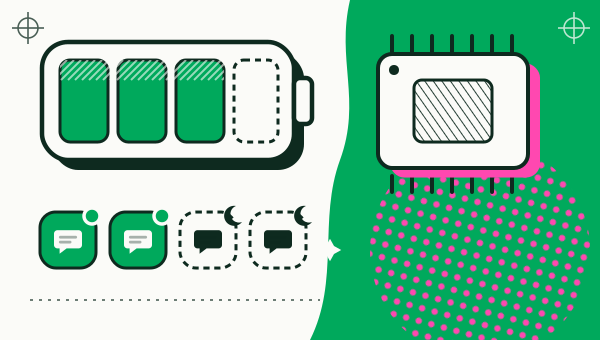
Each running copy of a cloned app is another app running on your phone, so it can use RAM and battery like any app, and you reduce the cost by keeping only the copies you use running. Duo Clone’s Memory & Storage screen lists every copy as Running or Stopped with its measured RAM and storage, and lets you stop copies or clear their cache. We do not publish a figure for how much a copy uses, because it depends on the app, your phone and what the copy is doing.
Do cloned apps use more battery and RAM?
A copy is the original app started a second time, so while it runs it takes memory and can work in the background like the original. Duo Clone shows RAM per copy, which is how you check this on your own phone instead of trusting a number from us. Android’s own battery screen decides how it lists a copy.
Expect the cost to follow the app. A heavy app costs more as a copy than a light one, and a copy you never open costs nothing while it is stopped.
How do you see which copies are running?
Open Memory & Storage from the chip icon at the top of My Clones, or from Settings. The screen shows two totals, Active RAM and Clone Storage, and one row for each copy. Each row shows a Running or Stopped label with that copy’s RAM and storage.
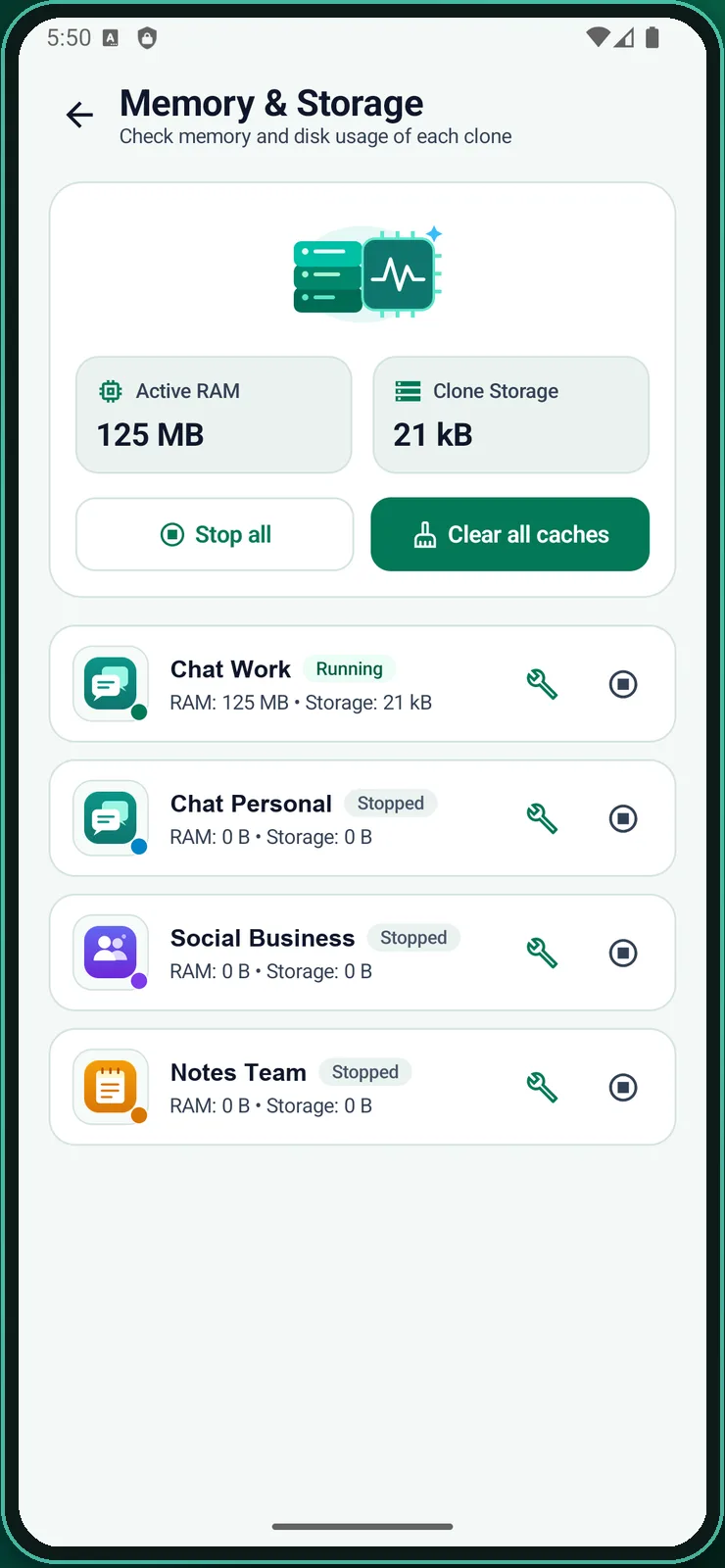
Duo Clone shows measured numbers only. It has no “boost” button that frees a made-up percentage of memory.
How do you stop a copy you are not using?
Stop one copy from its row in Memory & Storage, or stop every copy at once from the same screen or from the notification:
- One copy. Tap the stop button on its row. This closes the copy like a force stop, and you can open it again whenever you need it.
- All copies. Tap Stop all at the top of Memory & Storage.
- From the notification. When “Keep running clones active” is on, its silent notification shows how many copies are running and has a Stop all button.
Can Duo Clone stop copies by itself?
Yes. Turn on Turn copies off when unused in Settings. Duo Clone then turns off a copy that has been off screen for a minute, to save battery. You can change this for each copy with Turn off when unused in the copy’s menu, once the Settings option is on.
A copy that is turned off may not run its background work, so leave this off for a copy whose notifications you cannot miss. The setting Keep running clones active works the other way: it shows a silent status notification while copies run so that Android does not close them in the background. Copies that stay open also stay in memory, so choose the setting that fits how you use each copy.
What does clearing the cache do?
Clear all caches removes the temporary caches of every copy, and the app confirms with “Cleared temporary caches for all clones”. It frees storage, not RAM. One-tap repair on a copy repairs it and clears its temporary cache, which is worth trying when a copy misbehaves.
Both actions target temporary files only; your accounts are left alone. If a copy holds something you cannot lose, back up the copy first.
Which habits help most?
Keeping only the copies you use and stopping the rest helps most. Five habits cover it:
- Keep only the copies you use. Stop the others, or delete them after a backup, because deleting a copy erases its data.
- Tap Stop all when you finish a session.
- Turn on Turn copies off when unused if battery matters more than instant background activity.
- Check Memory & Storage after you add a heavy app, to see what it costs on your phone.
- Use Android’s own per-app battery settings too. Their names and places differ by phone.
If you run several accounts of one app, the multiple accounts page explains the setup, and how to run two accounts on one phone walks through it step by step. For the limits of a copy, read is an app cloner safe.
How we checked: the Memory & Storage screen, Stop all, Clear all caches and the two background settings were compared with the Duo Clone app on 18 November 2026, on an Android 16 emulator with generic sample apps.