To separate work and personal accounts of the same app on one Android phone, keep each one in its own copy of the app and sort the copies into named Accounts. With Duo Clone you label one Account “Work” and another “Personal”, colour-tag the copies, lock the work side behind a PIN or fingerprint, and jump between them with a bubble or a pinned notification. The setup keeps logins apart, but it is not a security boundary for work data.
How do you set up a Work and a Personal account?
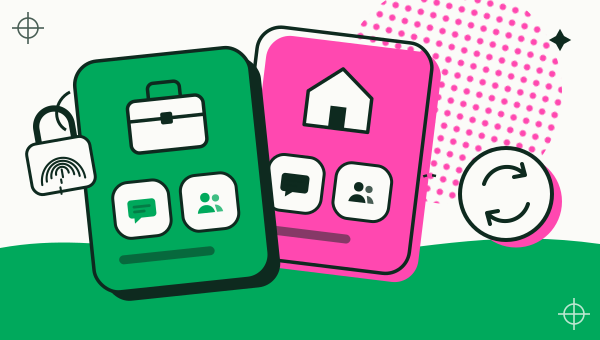
Make a copy of the app for the second login and put it in its own Account. An Account in Duo Clone is a named space that groups copies. Each Account holds one copy of a given app, so a second copy of the same app goes into a different Account.
- Decide which login stays in the original app. The original app on your phone is not touched. Many people keep the personal login there and put the work login in a copy, which needs only one copy of the app.
- Tap Add app and pick the app. Apps marked Protected cannot be copied (which apps can’t be cloned).
- In the setup sheet, choose the Account. Pick “New account” to start a fresh one. If the app is already in the Account you chose, Duo Clone says so and asks you to pick another Account or a new one.
- Name the copy, tap Create, open it and sign in with the work login.
Two copies of the same app on the phone need two different Accounts. A work copy of one app and a work copy of another app can share one Account, and that is the point of a group. For the full walk-through of making a copy, see running two accounts on one phone.
How do you name and colour them so you never mix them up?
Rename each Account and colour-tag each copy. Tap the pencil on an Account header to rename it; the hint in the app suggests names like Work, Personal or Gaming. Give each copy its own display name, such as “Chat Work”, and one of five colours (Emerald, Ocean, Amber, Purple or Rose).
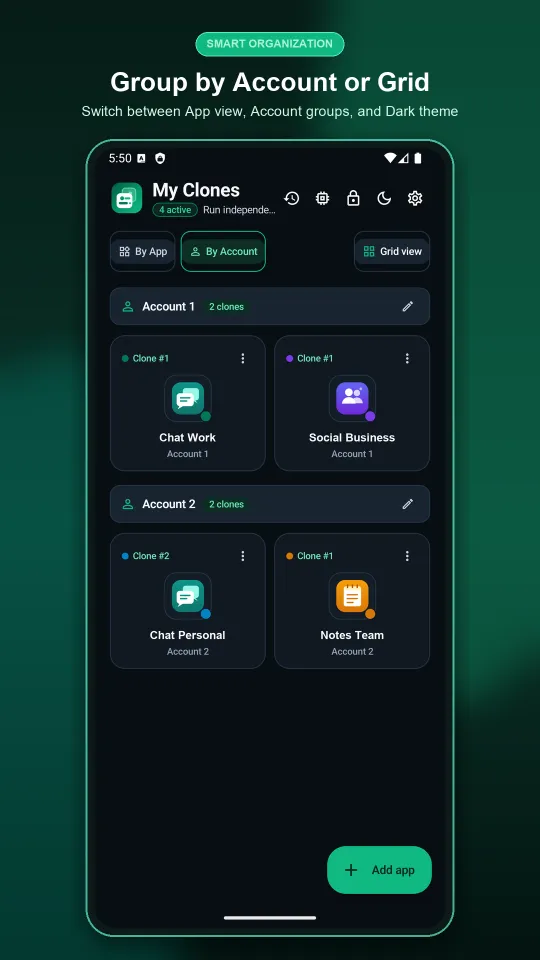
Switch the list to the By Account view so Work and Personal sit in separate groups, or back to By App to see both copies of one app side by side. You can also add a copy to your home screen from its long-press menu, so each copy gets its own shortcut.
How do you lock the work copies?
Move them into Private Space and protect it with a PIN or your fingerprint. Long-press a copy and choose “Move to Private Space”; it disappears from the main list and only shows after you unlock. The PIN is 4 to 6 digits, and it is the fallback when fingerprint or face unlock is not available.
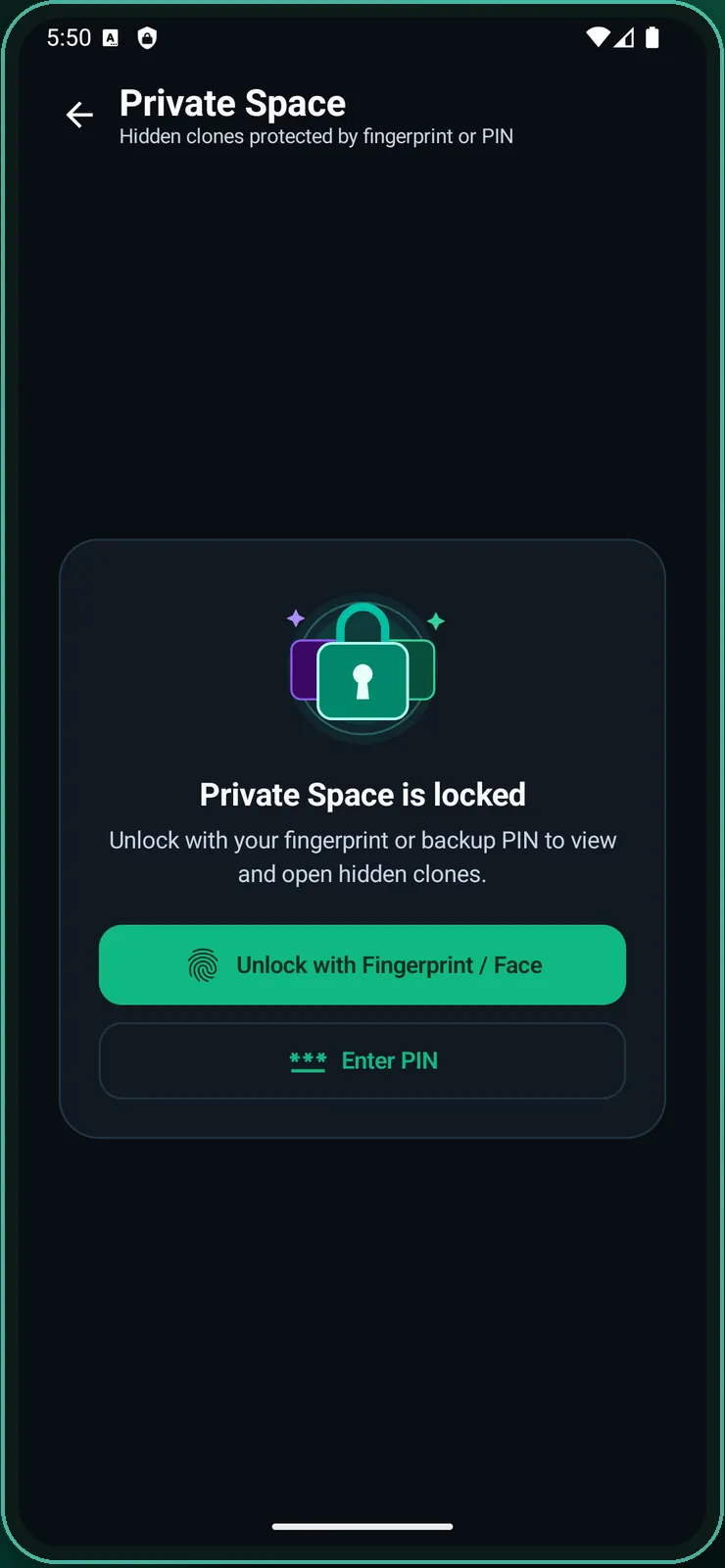
You can also turn on “Require lock when opening app” in Settings, which asks for the fingerprint or PIN each time Duo Clone itself opens. After too many wrong PIN attempts, the app makes you wait a few seconds before trying again.
The lock keeps the work copies away from someone who picks up your phone. It does not wall them off from other apps, because copies share your phone’s Android user (what a copy can and cannot protect).
How do you switch between work and personal quickly?
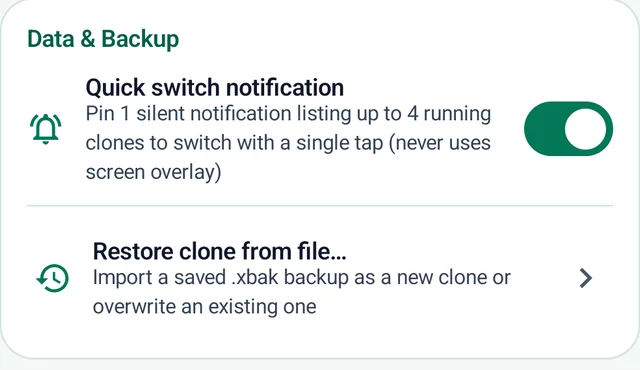
Turn on the floating bubble or the quick-switch notification, or open a copy from its home-screen shortcut. The floating bubble is a small button over other apps that opens a Quick switch panel; it needs Android’s “Display over other apps” permission before it can turn on. The quick-switch notification is a silent pinned notification that lists up to 4 running copies and opens one with a single tap.
How do notifications work for each account?
Each copy has its own “Allow notifications” switch in its long-press menu, so you can mute the work copy in the evening and keep the personal one on. Android’s notification permission is requested only after you agree on Duo Clone’s own screen, so allow it there first. Duo Clone does not add the copy’s name to an alert, so a notification may not show by itself which account it is for; the Account a copy sits in and its colour, both visible in Duo Clone, are what keep work and personal apart.
How is this different from Android’s own options?
Android has two built-in ideas that sound similar. Android’s multiple-users feature gives each person a separate profile that you switch to from the lock screen (Google’s help page). A work profile managed by your employer is set up by their IT team, and you should follow their rules for it. A copy in Duo Clone is neither: it is a second login of one app that runs next to the original, without switching users. If your phone already has a dual-app feature for your app, dual apps in each brand’s Settings shows what each maker offers.
What can this setup not do?
A Work and Personal setup cannot make work data safe; it only keeps the logins apart. Know these limits before you rely on it:
- Not a security boundary. Copies and Duo Clone share your phone’s Android user. Do not store anything there that your employer requires to sit in a managed or encrypted environment.
- Banking and wallet apps stay in the original app. Duo Clone blocks apps that ask Android for a secure environment.
- Copies in one Account share a Google sign-in. If your work Google account differs from your personal one, give them different Accounts (Google sign-in in cloned apps).
- Check each app’s terms. Some services limit extra accounts or modified apps, and your employer may have a policy on where work data may live.
Should you back up the work Account?
Yes, before you delete or change it. “Back up entire account” saves every copy in one Account, with its data and sign-ins, to an encrypted file locked by a password you choose. Keep that file somewhere safe and do not share it. You can restore it as a new Account or over an existing one.
To see where this fits, read the multiple accounts page or the quick answers in the Duo Clone FAQ.
How we checked: Account renaming, colour tags, Private Space, the bubble and the quick-switch notification were compared with the Duo Clone app on 18 November 2026, on an Android 16 emulator with generic sample apps. Google’s help page linked above was read the same day.