You back up a cloned app in Duo Clone by saving the copy’s data to an encrypted .xbak file, locked with a password you choose, and you restore that file later as a new copy or over an existing one. The password must have at least 6 characters, and if you forget it, Duo Clone cannot restore the backup. The file holds the copy’s sign-in and data but not the app itself, a whole Account fits in one file, and a restore fails on a wrong password, a damaged file or a missing app.
What does a Duo Clone backup contain?
A backup holds the data stored inside one copy: its signed-in account and personal data. Duo Clone’s own warning says the file contains “your signed-in account and personal data inside this clone”. It does not contain the app itself, so the original app has to be installed on the phone when you restore. Temporary cache is left out, because the app rebuilds it.
Duo Clone seals the file with AES-256 encryption, using a key built from your password. You choose where the file is saved, and Duo Clone does not upload it anywhere. Backup is one of the features of an app cloner like Duo Clone that keeps a copy’s data in your hands.
How do you back up a cloned app?
Open the copy’s menu in My Clones, tap Backup…, set a password of at least 6 characters and choose where to save the .xbak file:
- Open My Clones and open the menu of the copy you want to save.
- Tap Backup…. Duo Clone warns that the file holds your signed-in account and personal data.
- Enter a password of at least 6 characters, then enter it again to confirm. The screen reminds you that a forgotten password cannot be recovered.
- Tap Choose save location… and pick a folder in Android’s file picker. The suggested file name ends in
.xbakand includes the date. - Wait for the message “Backed up … successfully”.
Duo Clone stops the copy before it packs the data, so the file does not capture half-written data. Copy the finished file to a second place, such as your computer, because a backup that lives only on the phone is lost with the phone.
Can you back up a whole Account at once?
Yes. An Account groups copies into one space, and you can save every app inside it in a single file. Open the Account’s menu and choose Back up entire account…. Duo Clone shows how many apps the Account holds, then asks for a password and a save location in the same way.
When you restore an Account backup, you choose between a new Account and an existing one. If you overwrite an existing Account, Duo Clone updates the apps that are in the backup and leaves the other apps in that Account as they are.
How do you restore a backup?
Install the original app, open Restore clone from file… in Settings, pick the .xbak file, enter its password and choose a new or an existing copy:
- Install the original app on the phone if it is not there. If the installed version is older than the one the backup came from, Duo Clone asks you to update it first.
- Open Settings, then Data & Backup, then Restore clone from file…. On an empty My Clones screen, the Restore… button does the same.
- Pick the
.xbakfile in Android’s file picker. - Enter the backup password.
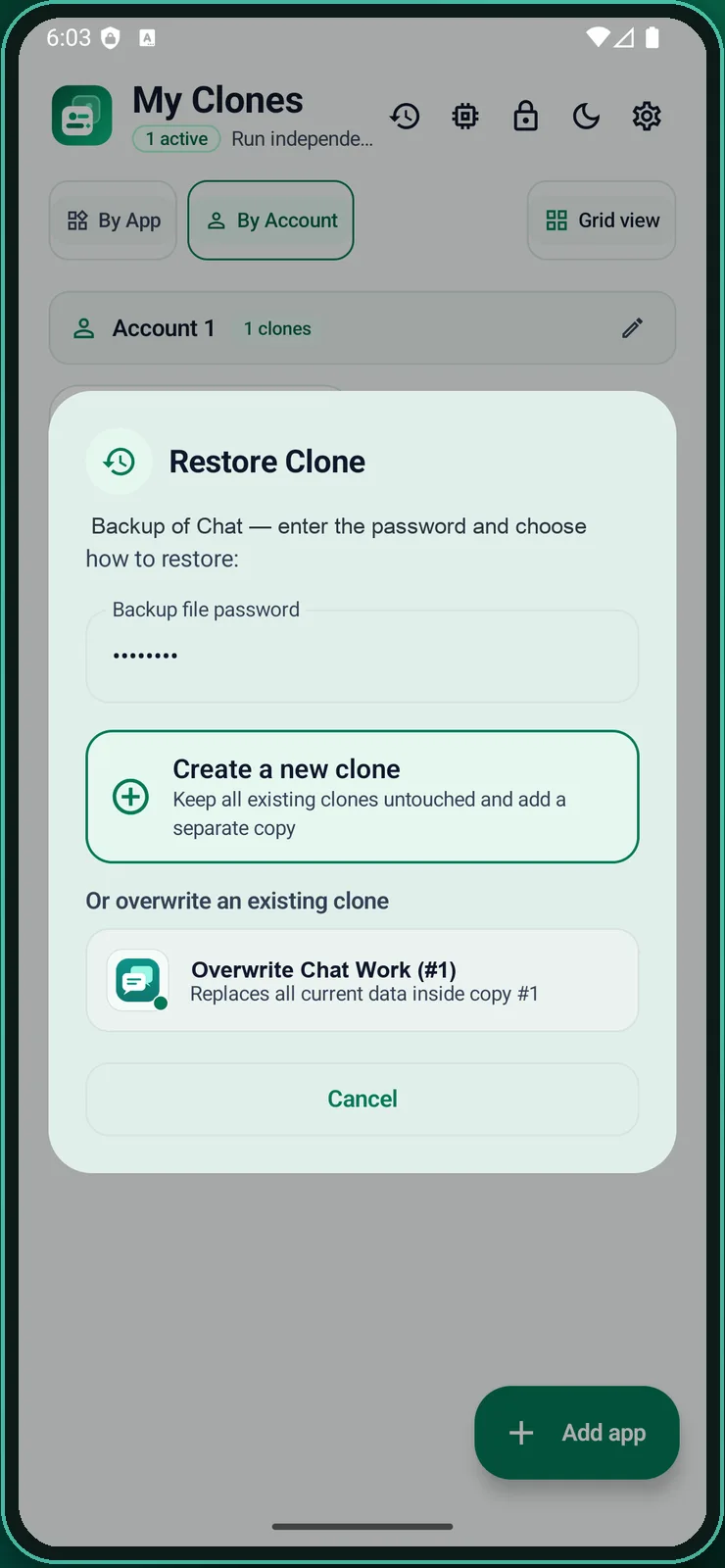
- Choose Create a new clone or one of the copies listed under Or overwrite an existing clone.
Should you restore as a new copy or overwrite?
Restore as a new copy when you are unsure. The app describes it as keeping “all existing clones untouched” and adding a separate copy. A copy restored this way does not merge into an Account you already use on its own, so check where it appears in My Clones.
Overwrite when you want to roll a copy back to an earlier state. The app says it “replaces all current data inside” the copy you pick, so you cannot undo it. The copy must belong to the same app as the backup, or Duo Clone refuses.
Why does a restore fail?
A restore fails when the password is wrong, the file is damaged, the original app is missing or older than the backup, the wrong copy is picked, or storage runs short. Each case shows its own message:
- “Incorrect password”. The password is wrong, or the file was changed after it was saved.
- “This file is not a valid backup or has been damaged.” The file is not an
.xbakbackup, or it is cut short. - “Please install the original app…” or “Please update the original app…”. The app is missing, or the installed version is older than the backup.
- “The selected clone belongs to a different app.” You picked a copy of another app to overwrite.
- “Could not read or write the backup file.” The phone may be short of storage.
As a safety limit, Duo Clone currently refuses a backup that unpacks to more than 512 MB. A very large copy may need to be cleaned up before you save it.
What if you forget the password?
The backup cannot be restored, and there is no reset. Use a password you can keep in a password manager, and do not share the file, because it holds sign-in data. If you want to decide first whether a copy is worth keeping, read is cloning apps safe.
What does a backup not do?
A backup does not save the original app, only the copy’s data. It is not a cloud service, so you manage the file yourself. It also cannot promise that an app keeps you signed in after a restore, because some apps ask you to sign in or verify again on a setup they do not recognise, and we cannot predict that for each app.
Back up before you delete a copy or change phones. To free up memory instead, see how to reduce battery and RAM use with cloned apps. For the first setup, follow the step-by-step guide, and for the short answers, see the FAQ.
How we checked: the Backup, Back up entire account and Restore screens, with the messages quoted above, were compared with the Duo Clone app on 18 November 2026, on an Android 16 emulator with generic sample apps.