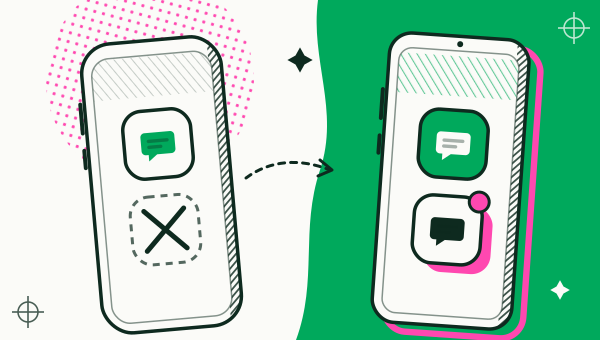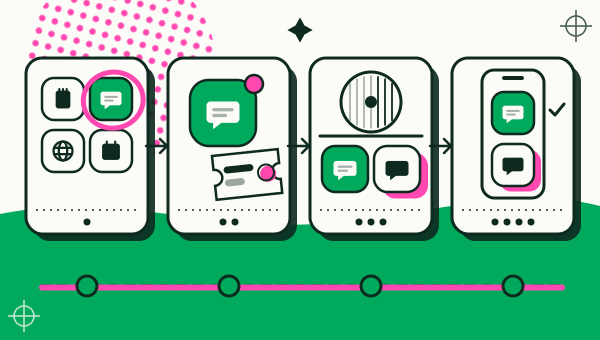
To clone an app on Android, install an app cloner from Google Play, pick an app that is already on your phone, give the copy its own name and colour, then open the copy and sign in with your second account. Duo Clone does this on Android 6 to 16, and the copy keeps its own sign-in, chats and settings.
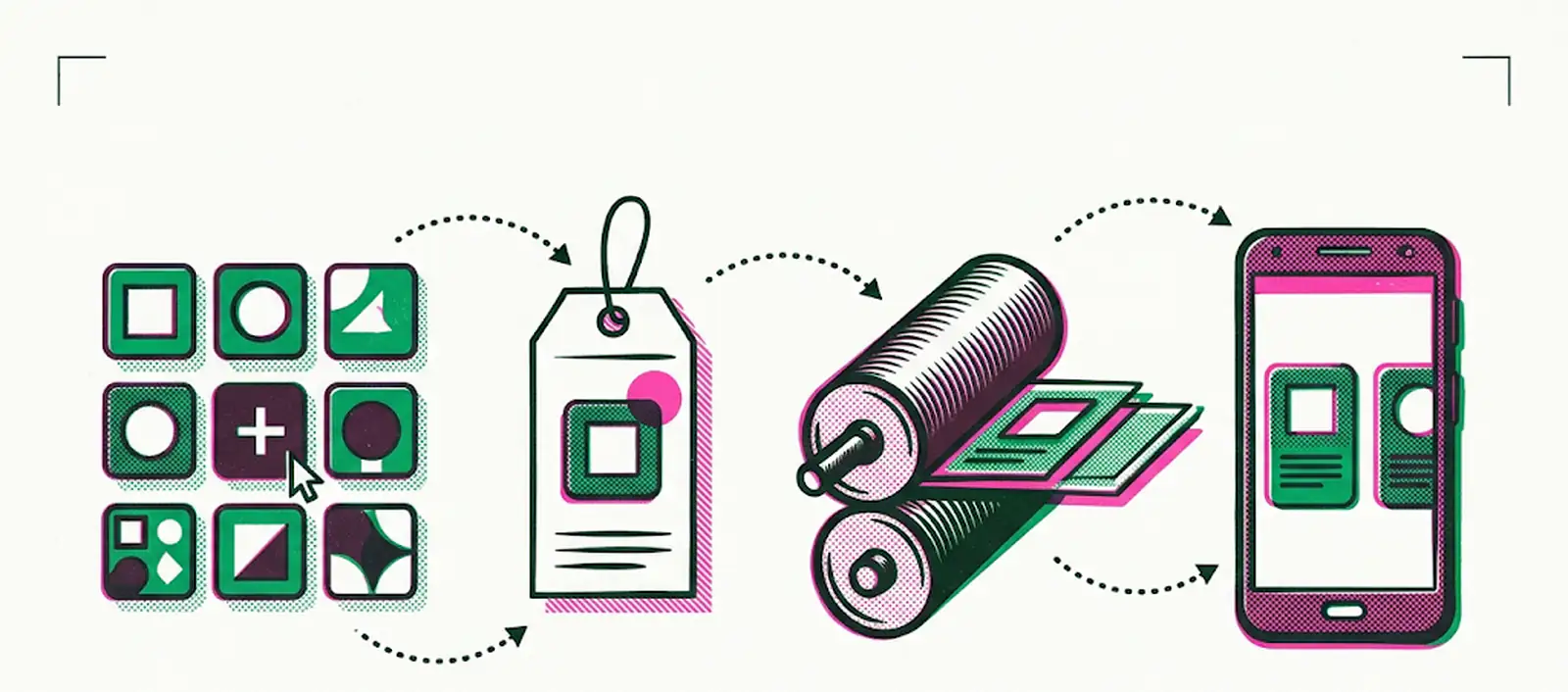
What do you need before you clone an app?
You need an Android phone running Android 6 or newer, Duo Clone, and the app you want to clone already installed on that phone. Duo Clone copies apps that are on your phone and never downloads code from outside Google Play.
One limit is worth knowing now. Banking, wallet and other apps that ask Android for a secure environment will not open in a copy, so keep using those in the original app (which apps can’t be cloned).
How do you make the copy?
Open Duo Clone, add the app, set up the copy, and open it. Each step below matches a button or screen you will see in the app.
- Open Duo Clone and allow the app list. On first launch you see a short privacy screen. Duo Clone asks to read the list of apps on your phone so you can choose one. That list is read on the phone only.
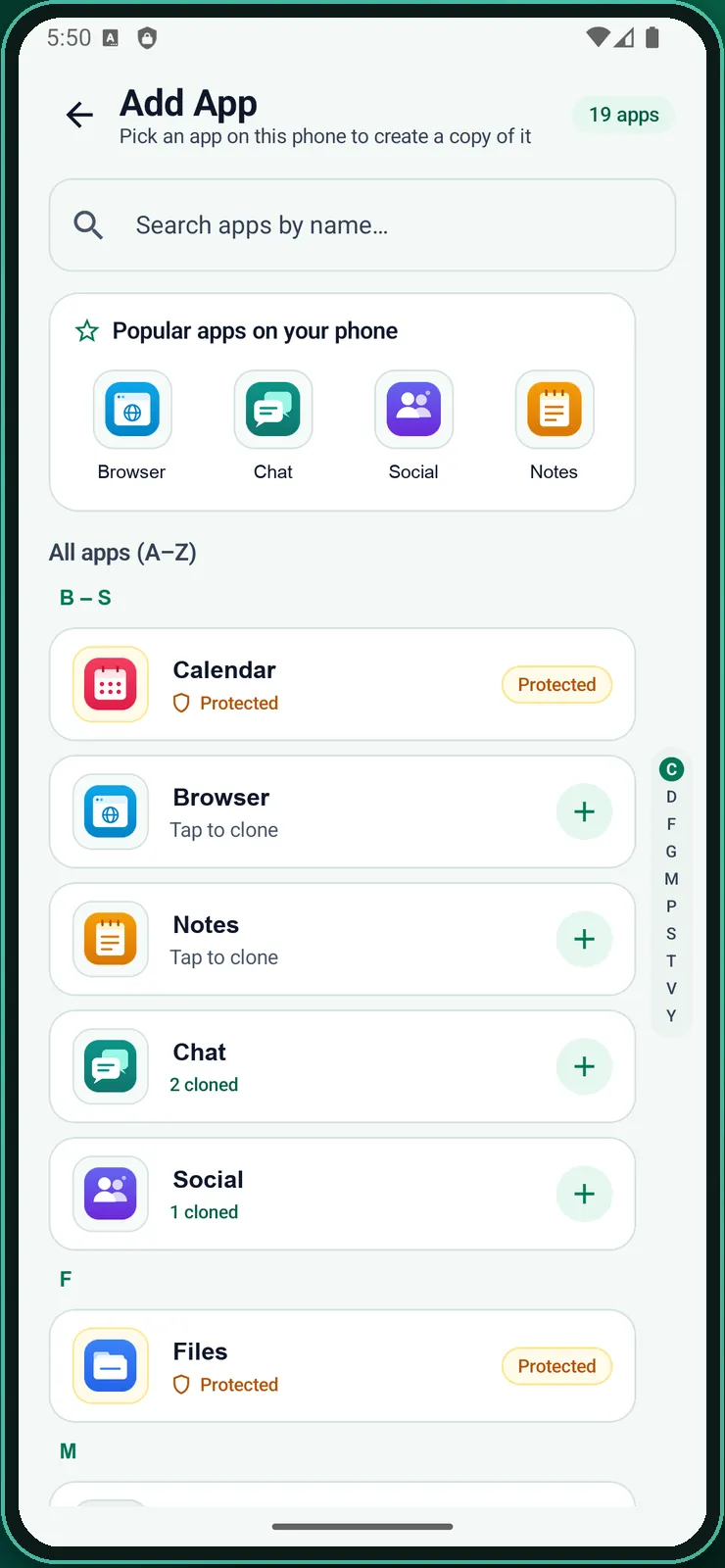
- Tap Add app and pick the app. Search by name or scroll the list. An app marked “Protected” cannot be cloned.
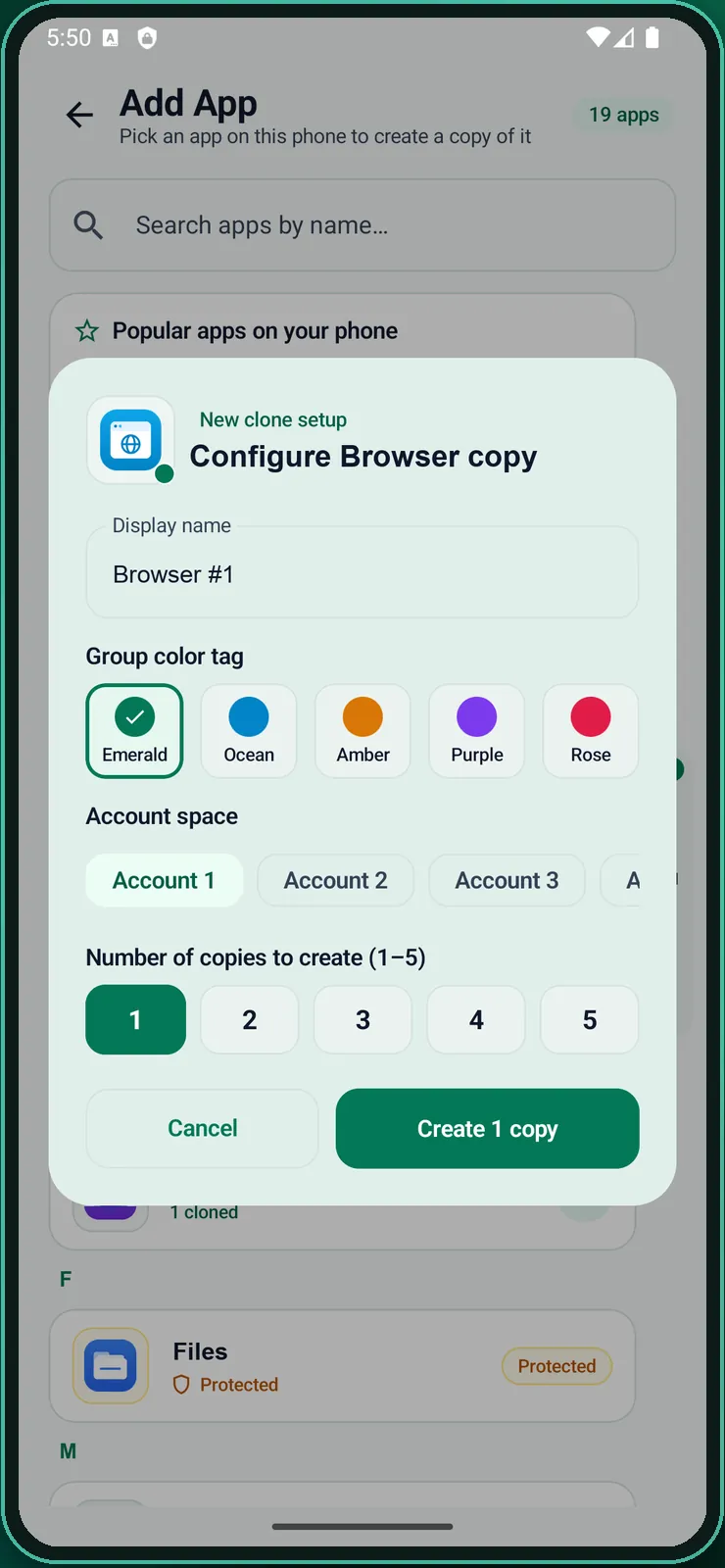
- Set up the copy. Duo Clone shows a setup sheet with a display name, a colour tag and an Account. The name starts as the app’s name plus a number. Rename it to something you will recognise, such as “Shop” or “Work”.
- Choose the Account. An Account is a space that groups copies, such as Account 1 and Account 2. Copies in the same Account share Google sign-in, so pick “New account” when the copy needs a different Google account.
- Create it and tap Open. The copy appears in your list. The first open takes a moment while Duo Clone sets the copy up.
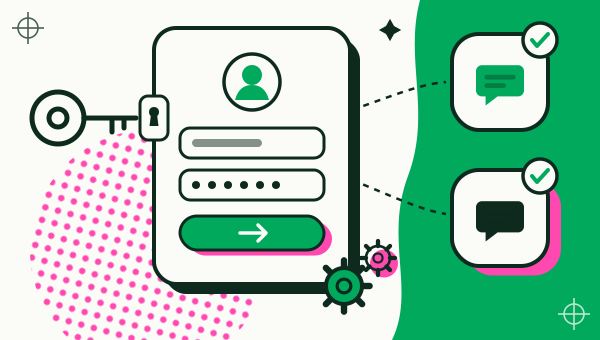
- Sign in with your second account. Log in as you would in any app. Both the original and the copy stay signed in, so you never log out to switch.
Duo Clone includes microG, so apps that sign in with a Google account work inside a copy (how Google sign-in works in cloned apps).
How do you rename or recolour a copy later?
Long-press the copy and choose “Edit name & color” to change its name and colour badge. You can also pick a photo from your phone as its icon and add the copy to your home screen as its own shortcut.
The list can be shown by app or by Account. If you manage several things on one phone, the Account view keeps “Work” and “Personal” apart (run multiple accounts at once; see also separating work and personal accounts).
How do you turn on notifications for a copy?
Allow notifications for Duo Clone, then switch them on for each copy. Agree to Duo Clone’s notification tip first, because Android only shows its system prompt after you do. Alerts do not carry the copy’s name; running two accounts on one phone explains how to keep the two accounts’ alerts apart.
For fast switching between running copies, Duo Clone has a floating bubble and a quiet pinned notification. Both are optional settings. The bubble needs Android’s “Display over other apps” permission.
What if a copy won’t open?
Try opening it again, then run the one-tap repair from the copy’s long-press menu, which also clears its temporary cache. If Duo Clone says the app can’t be opened in a copy, that app asks Android for a secure environment and is blocked on purpose.
If the copy still fails, stop the copies you are not using from the memory manager, which shows RAM and storage for each copy (reduce battery and RAM use). If that does not help, write to us from the support page.
What should you do before deleting a copy?
Make an encrypted backup first. Deleting a copy erases everything stored in it, while your original app stays as it is. A backup is a file locked with a password you choose, and you can restore it later as a new copy or over an old one. If you forget the password, the backup cannot be restored.
Read the app cloner overview for what each copy can have, or check whether cloning is safe. If your phone already has a built-in dual-app setting, compare it with Duo Clone.
How we checked: the privacy screen, the Add app list, the setup sheet, the long-press menu and the repair option were compared with the Duo Clone app on 18 November 2026, on an Android 16 emulator with generic sample apps.